A private YouTube video can be watched only by the person who uploaded it and by the accounts it was shared with. The YouTube downloader of AIOVideoDL can download it for you, but only the way YouTube itself would show it: with the cookies of an account that is allowed to watch it. This guide shows, step by step, how to export those cookies so that they keep working, and what each message of the site means.
Two things first. If the video was not shared with your account, no cookies and no site can open it. And if you uploaded it yourself, the easiest way is YouTube Studio: Content, the three dots next to the video, Download.
What you need
- The Google account that may watch the video (you can open it on youtube.com while signed in).
- Chrome, Edge or Firefox on a computer.
- The browser extension Get cookies.txt LOCALLY (free; it writes the cookies to a file on your computer and sends them nowhere).
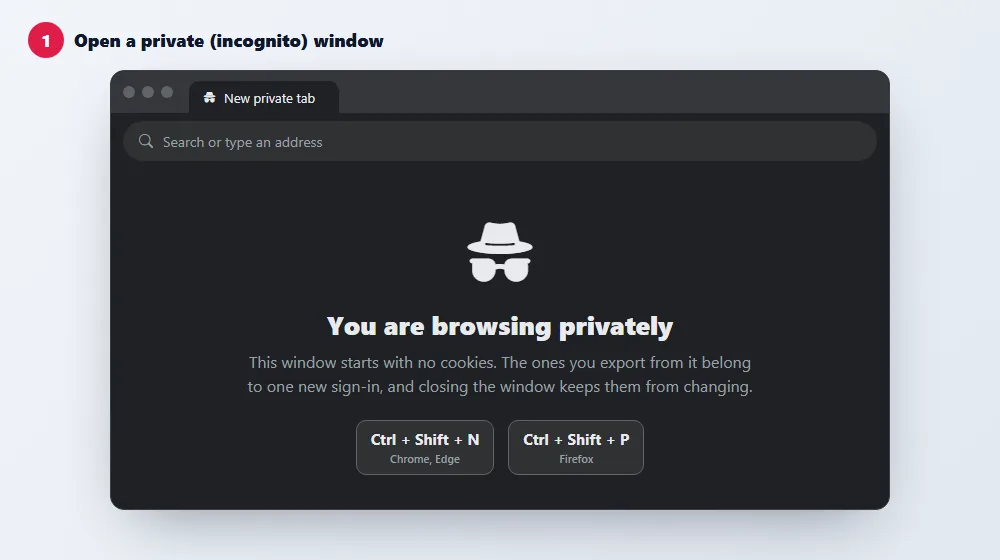
Step 1: open a private (incognito) window
Press Ctrl + Shift + N in Chrome or Edge, Ctrl + Shift + P in Firefox. A private window starts with no cookies, so the ones you export from it belong to one fresh sign-in.
Why not your normal window? YouTube changes ("rotates") the cookies of a browser that stays open on YouTube, for your safety. Cookies copied from a normal window usually stop working within minutes, and the site then says that YouTube did not accept them.
Step 2: sign in to YouTube, then close the YouTube tab
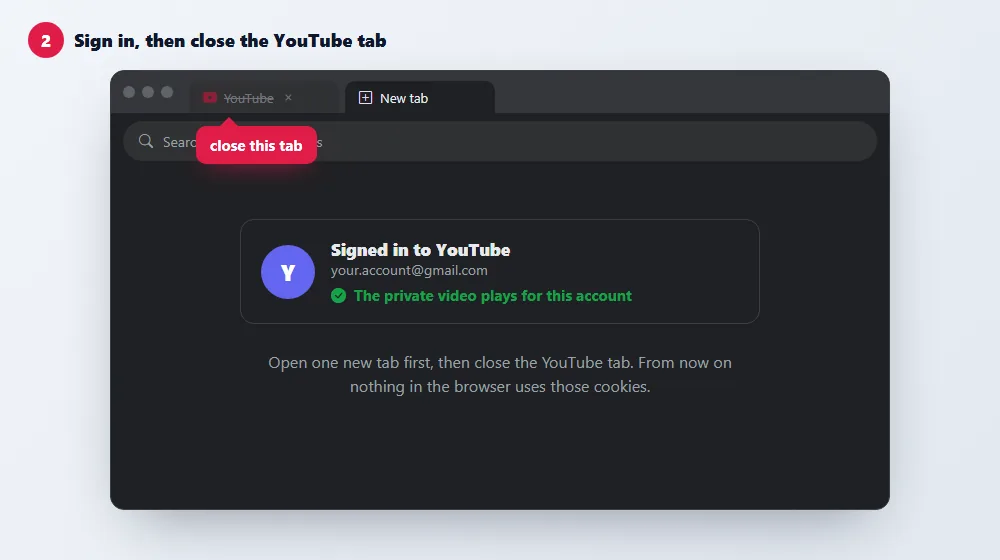
In the private window open youtube.com and sign in with the account that can watch the video. Open the video once to be sure it plays. Then open one new tab and close the YouTube tab: from now on nothing in the browser touches those cookies.
Step 3: export the cookies of youtube.com
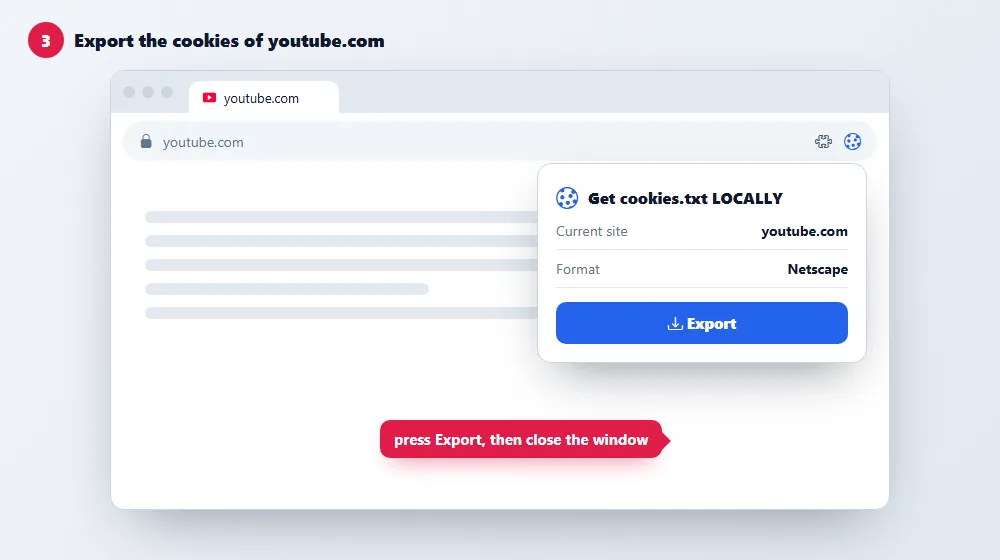
Allow the extension in private windows (Chrome: Extensions, Details, Allow in Incognito). In the new tab type youtube.com in the address bar but do not keep the page open longer than needed, click the extension and press Export. You get a small text file, usually called youtube.com_cookies.txt.
Step 4: close the private window
Close the whole private window right away. The cookies in your file stay valid because the browser never uses them again.
Step 5: paste the cookies on AIOVideoDL and download
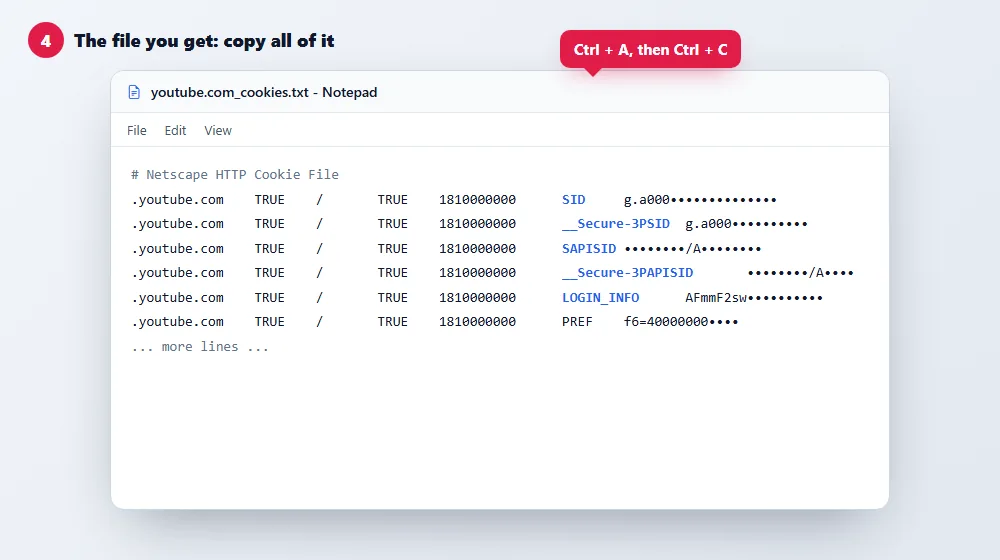
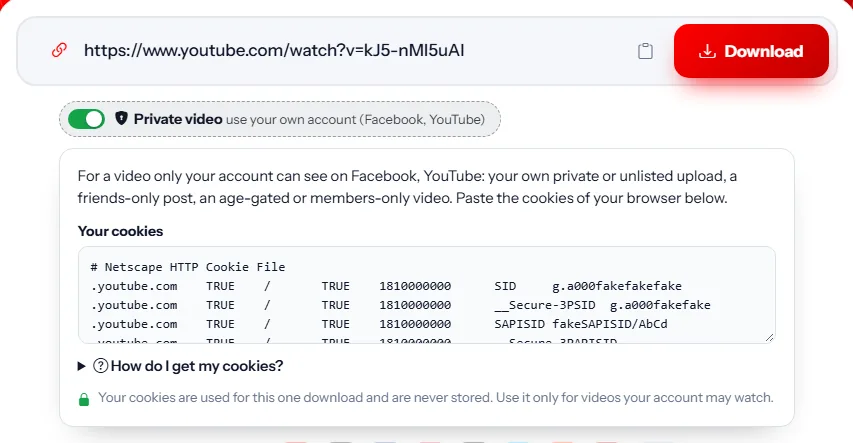
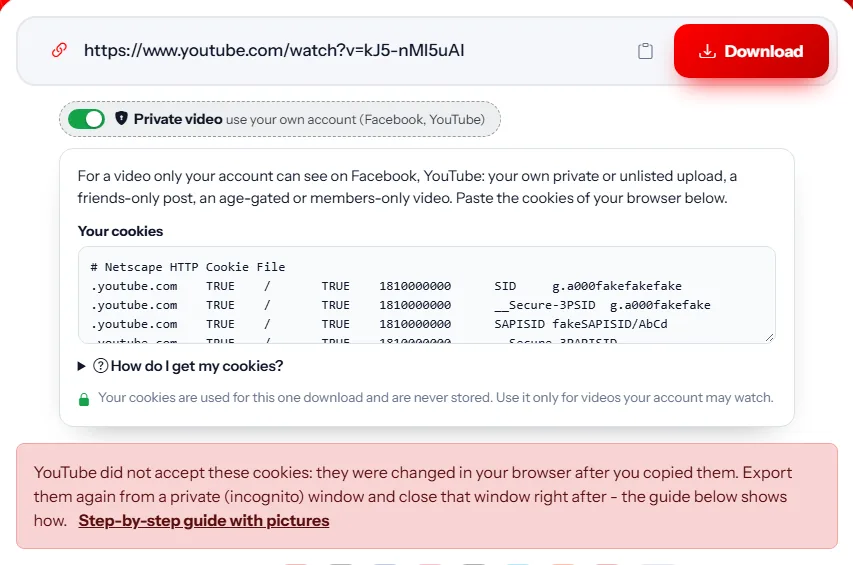
On AIOVideoDL switch on Private video under the download box, open the cookies file in Notepad, copy everything in it and paste it into the box. Put the link of the private video in the field and press Download. The cookies are used for that one download and are never stored.
When it does not work: what the message means
- "YouTube did not accept these cookies: they were changed in your browser after you copied them." The cookies were rotated. Do steps 1 to 4 again and do not reopen YouTube in that window.
- "The account of these cookies may not watch this video." The cookies are fine, but the video was not shared with this account. Ask the owner to share it with you, or use the account it was shared with.
- "What you pasted is not a list of cookies." Only one value was copied. Paste the whole file the extension made.
- "These cookies hold no sign-in of YouTube." You exported before signing in, or from the wrong site. Sign in first, then export youtube.com.
- "YouTube asked this server to prove it is not a robot." Try again with fresh cookies; if it keeps happening, tell the admin of the site.
Is it safe?
Cookies are the keys of a signed-in session, so treat the file like a password: paste it only on a site you trust and delete the file afterwards. AIOVideoDL uses them for one request and keeps nothing. If you ever want them to stop working, sign out of YouTube on all devices in your Google account, or change the password.
Can I download a private video that was not shared with me?
No. A private video opens only for its owner and the accounts it was shared with; cookies of any other account get the same "private video" answer.
Why do cookies from my normal browser stop working?
YouTube rotates the cookies of a browser that keeps YouTube open. Cookies from a private window that you closed straight after exporting are never rotated.
Do I have to export the cookies every time?
No. The same file works for weeks, until you sign out of that session or change the password. Keep it safe and paste it again next time.
Can I save my own private uploads without cookies?
Yes: in YouTube Studio open Content, click the three dots next to the video and choose Download.